ChatGPT can't see your Windows computer? Fix LocalCommander MCP connection in 9 steps
The ChatGPT plugin is installed, but your computer is missing? Check the separate authorization and pairing steps before reinstalling everything.
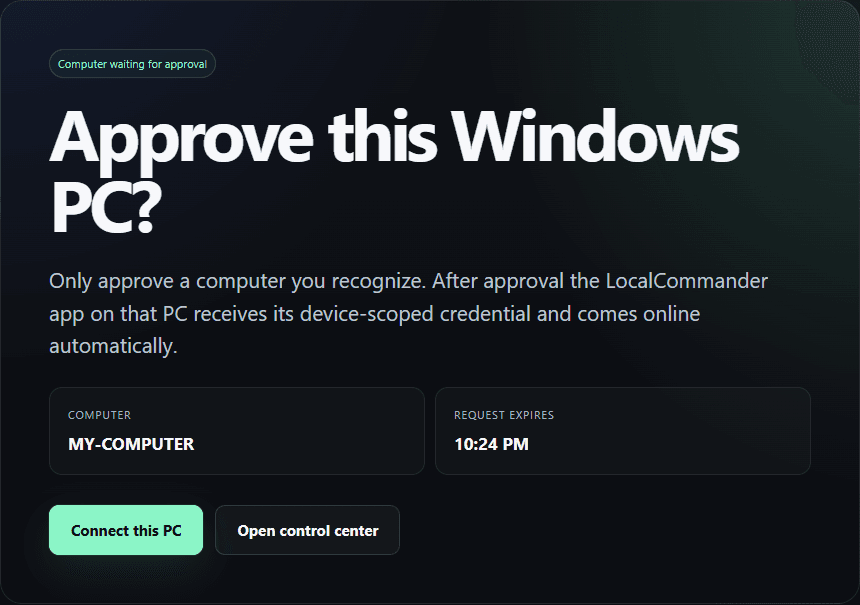
Your LocalCommander plugin is installed, but ChatGPT says it has no connected device? That does not always mean the service is down. Plugin authorization and Windows device pairing are two different connections, and both must succeed.
Use this checklist to diagnose visibility specifically from ChatGPT. If the Windows companion itself shows Offline, the separate Offline troubleshooting article covers broader network and app issues.
1. Is the LocalCommander plugin available in this ChatGPT conversation?
Check the available plugins and tools in the current conversation. A plugin being installed on your account does not guarantee the current chat has its tools enabled.
If LocalCommander is missing, first finish the plugin installation and authorization rather than reinstalling the PC app.
Check whether LocalCommander tools are available in this chat. If they are, list my paired devices and their online status only. Do not execute any other computer actions.
2. Use the same LocalCommander account everywhere
The account used for ChatGPT authorization must own the Windows device. If you created another LocalCommander account with a different email address, the new account will have a separate device list.
Open your LocalCommander dashboard and look for paired computers. An empty list will not be fixed by approving OAuth access again.
3. Check that the Windows companion is actually online
Your computer can be switched on while the LocalCommander companion is not running. Launch the app and verify its status. Sleep mode, lost connectivity or a stopped process can prevent tool execution.
When you own multiple PCs, check which one is online and selected. Do not assume a previously saved hostname still identifies the correct machine.
- Windows is running with an internet connection.
- LocalCommander companion is open.
- The dashboard shows a connected device.
- The chosen device is the one you intend to use.
4. Did you complete device pairing, not just installation?
Visit /connect/windows and finish device approval. Downloading the Windows executable and launching it is not the same as adding it to your account. Complete the browser approval step if prompted.
If a pairing request expires, begin a fresh one rather than repeatedly submitting an expired code or link.
5. Review OAuth consent and permissions
ChatGPT needs an active OAuth authorization for the relevant LocalCommander tools. If you denied access, signed into the wrong account or lost authorization, it may be unable to list devices or run commands.
Reconnect the plugin and carefully review the requested scopes. Test a simple read-only action before approving more sensitive permissions.
6. Make sure the tool matches the operating system
Not every tool works on every platform. Windows-specific operations may not run on Android or a beta version of another operating system. Requests must be routed to a compatible device.
You can interact with ChatGPT on a supported phone, but the Windows installer must run on the actual Windows computer, and the companion there must stay online.
7. Test listing devices before testing file operations
First request a list of paired devices and their status. Then try one small read-only task, such as listing filenames from a folder you own. If device listing succeeds but the task fails, focus on scopes, tool support and the selected machine.
Do not troubleshoot access by executing destructive commands, changing registry settings or restarting services.
@LocalCommander List my paired devices and tell me which Windows PCs are online. On a compatible online PC, read only the names of five recent files in Downloads. Do not modify anything. If this fails, show the exact error and the step where it failed.
8. What do Offline and ECONNRESET tell you?
Offline suggests the companion is not currently connected. An ECONNRESET error means the connection was reset during a specific operation; it does not prove that every service is broken. Note the timestamp and operation and see whether the problem recurs.
If you need support, provide a sanitized diagnostic summary. Never post access tokens, full session cookies or logs containing personal information.
9. Keep a short checklist for next time
Check the current chat, plugin authorization, LocalCommander account, device pairing, active companion, online status and one read-only tool result. Doing these checks in order separates account problems from Windows problems.
If you still cannot connect, contact support with your operating system, device state and exact error rather than only saying the AI cannot use your PC.
Turn the guide into a real task.
Connect your Windows PC, choose a low-risk task and verify the result. Start on the Free plan.