ChatGPT in Windows Terminal: how to use PowerShell and CMD on your PC
Stop copy-pasting every command from AI. Learn how authorized MCP tools can read your own Windows computer and how to review the results.
Can ChatGPT run PowerShell or CMD commands on your Windows PC? Not from a plain chat alone. A normal conversation cannot directly inspect your local files or execute shell commands. You need an installed companion application and a deliberate permission step.
LocalCommander connects an authorized Windows computer to ChatGPT through MCP tools. This guide explains Windows Terminal versus PowerShell, walks through safe first tasks, and shows how to verify the results before allowing commands that could modify files or system settings.
Windows Terminal, PowerShell, CMD and ChatGPT are different things
Windows Terminal is an application window that can host shells including PowerShell and Command Prompt. PowerShell provides structured Windows commands, while CMD is the traditional command interpreter. ChatGPT interprets a request; an authorized LocalCommander companion actually runs a supported action on your computer.
This is not remote desktop access or a guarantee that an AI assistant can read everything. Device ownership, an online companion app, account permissions and tool-specific safety limits all matter.
- Windows Terminal — a place to run shell sessions.
- PowerShell — Windows administration and diagnostic commands.
- CMD — classic command-line tools.
- LocalCommander — an MCP bridge to the Windows computer you choose.
Step 1: install the Windows companion and approve MCP access
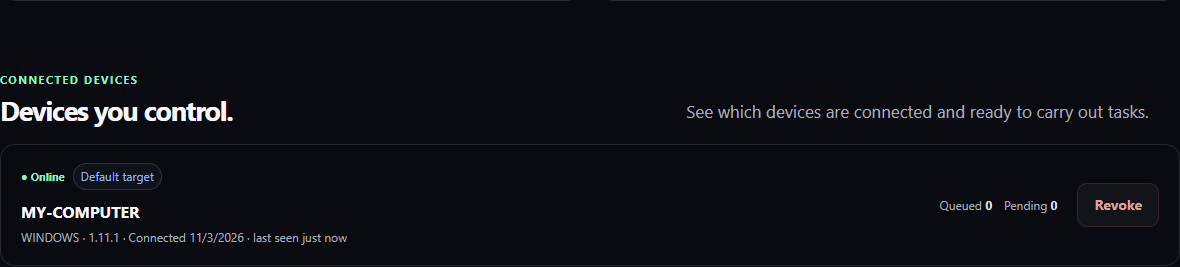
Install LocalCommander on your own Windows PC, create an account and verify your email. Complete device pairing, then connect LocalCommander in ChatGPT using that same account. Read the OAuth scopes before approving access and confirm that the device appears online.
You can send ChatGPT requests from a supported mobile client, but the Windows executable belongs on the Windows PC you want to control. Do not share account passwords, access tokens or recovery codes in the conversation.
- Follow the illustrated installation guide at /en/install.
- Open /connect/windows to complete device approval.
- If ChatGPT cannot see the PC, use the connection troubleshooting guide.
Step 2: begin with harmless read-only commands
Start with actions that do not change the system. Get-Location shows the current folder, Get-ChildItem lists files, and Get-Process lists processes in PowerShell. Ask for the actual output and the relevant path instead of accepting guesses about your desktop.
Keep the task narrow: one specified folder, one question and no changes. If a command is unavailable or a safety policy rejects it, do not try to bypass restrictions by disguising the command.
@LocalCommander First confirm that my Windows PC is online. Then show the current directory and the names of the five most recently modified files in Downloads. Read only. Do not delete, move or overwrite anything. Include the file paths in the result.
Practical example: inspect a Node.js project without changing it
For a software project, useful checks include the installed Node.js and npm versions, the current Git branch, uncommitted changes and available package scripts. These can tell you whether you are looking at the expected repository before you attempt a build.
Ask for a status report first. Do not allow an agent to run migrations, package installations, pushes or production deployments automatically just because a project looks familiar.
@LocalCommander In the repository I point you to, report the Node.js and npm versions, Git status, latest commit and scripts defined in package.json. Do not install packages, push commits, run migrations or deploy. Show what I would need to approve next.
What if ChatGPT says it cannot see the computer?
Distinguish a missing device from a shell error. Confirm that the plugin is enabled in the current chat, your OAuth connection belongs to the same account as the PC, and the Windows companion shows Online. If several computers are paired, check the selected device.
If the error is about a restricted command, the issue may be policy rather than connectivity. Try an authorized read-only query or use the operating system manually with appropriate approvals.
- No devices: verify the account, pairing and companion status.
- Unauthorized: review the OAuth consent and selected tools.
- Unknown command: specify PowerShell or CMD and your expected output.
- Unclear result: request the exact output and original path.
Shell safety matters more than a clever prompt
A command can remove folders, reveal sensitive data or stop a critical service. Keep your first tasks read-only; review any action requiring elevated privileges; back up important data before changes; and never put API keys or private credentials in prompts.
An MCP tool call is evidence that an action was attempted, not proof that the whole job succeeded. Inspect exit status and output, confirm the target computer, and ask the agent to separate observed facts from its assumptions.
Good to know: LocalCommander is an independent Solid Code Apps product, not a built-in Windows Terminal feature or an OpenAI or Microsoft product.
Where to go next
Once basic diagnostics work, you can review text logs, check project state or create summaries from files you are authorized to access. Increase the scope one verified step at a time.
See the developer-focused Windows guide for advanced diagnostics, the LocalCommander installation guide for connection steps and the MCP security article for permission boundaries.
Turn the guide into a real task.
Connect your Windows PC, choose a low-risk task and verify the result. Start on the Free plan.